Connect Claude to Gmail: what an MCP mail server can do
Conduit's hosted MCP server lets Claude read, search, and draft your Gmail. What it can do, what it can't, and how consent and sending are gated.
You connect Claude to Gmail by pointing it at an MCP server that already holds the mailbox connection. Conduit Mail, in early access, hosts one at connect.conduitmail.app/mcp: a fixed tool list grouped under four scopes, consent granted per scope, drafts only until you say otherwise, no permanent-delete or move tools at all, and every call logged. MCP access is Plus and up.
That is the whole answer. What follows is the part you should read before you grant anything: what each scope actually covers, what widens on its own, and what we refused to build.
What does connecting Claude to Gmail actually mean?
Right now, if you use Claude for email, you are probably doing it by hand. You open a thread, select the whole ugly quoted chain, paste it into a chat window, type “what is this person actually asking for,” and then copy the reply back out. It works. It is also a lot of clipboard.
The Model Context Protocol exists to remove that loop. MCP is an open protocol for letting an AI assistant call tools on a service you control — the assistant asks for a search, the service runs it and returns structured results. The specification is public and published in dated revisions. What it standardizes is how a client and a server talk; each server still decides what tools it offers and what those tools are allowed to touch.
So “connect Claude to Gmail” is really two questions stacked on top of each other. Which server sits between the assistant and the mailbox, and what did that server decide to expose?
Conduit’s answer is a hosted MCP server. Your Gmail account is already connected to Conduit for the mail client itself, and consent happens on Conduit’s own screen, against the accounts already connected to Conduit.
Claude is one client on the other end — claude.ai, Claude Desktop, or Claude Code — and Codex, ChatGPT and any other MCP client connect the same way. The client is not a Conduit component and it does not run our code. It calls tools, and our server decides which ones exist.
The obvious alternative is to hand an assistant a raw Gmail credential and let it talk to Google directly. That works, and it is the version we did not want to ship. The grant is broad, nothing about it constrains which operations the assistant chooses to call or caps how much it can send, and nothing on the assistant’s side gives you a per-call record afterward.
A mail server in the middle gets to draw that boundary. It can offer four scopes instead of one, refuse to build the irreversible tools at all, keep sending behind its own switch, and log every call in a place you already have an account. A credential is a key to the building. A tool list is a set of doors, and we did not cut one for the incinerator.
Three ways to connect, all over Streamable HTTP:
- Claude Code — one
claude mcp addcommand, which opens your browser for consent. - Codex CLI —
codex mcp addfollowed bycodex mcp login, which opens the same browser consent screen. - Any other MCP client — claude.ai, Claude Desktop, ChatGPT, VS Code and the rest take the server URL directly, same consent screen, same scopes.
The exact commands live on /agents, which stays current in a way a blog post can’t.
What Conduit’s MCP server exposes, tool by tool
The tool list is fixed and generated from one shared spec, so it is the same however you connect; the setup commands and the four scopes are on /agents. The tools fall into four groups, and each group is gated by exactly one named scope.
email:read — list your connected accounts and folders, browse or search across them, read full messages and threads, and pull an attachment out of a message, so the assistant can read the PDF someone sent you rather than just the sentence about it. This is the scope that makes “find the thread where we agreed on the delivery date” work without you locating it first.
email:write, organizing half — mark read or unread, star, archive, move to trash, and manage Gmail labels. Every one of those is reversible, trash included: a trashed message sits in Trash until you move it back. That is not a coincidence; see the section below on what is missing. One more tool here is off until you turn it on in Conduit: blocking a sender. The assistant can block one address on all your accounts, and Conduit then moves that sender’s mail from your inboxes to Trash as it syncs. It doesn’t search older mail, and only you can unblock, in Conduit.
email:write, composing half — draft new messages and replies with correct threading, attach a file to a draft, and, if you have turned it on, send. Drafting is the default state of a new connection. When direct sending is on, a send is parked rather than dispatched, and cancel_send lets the assistant pull it back inside the window.
rules:manage and notes:manage — create and manage your automation rules, and read or write the notes you keep on emails. Rule actions that need an in-app confirmation, like auto-trash or a webhook, are rejected over MCP rather than quietly allowed. The one standing trash an assistant can set up is a sender block, and only after you turn blocking on.
What this buys you in practice is that the assistant stops needing you as a retrieval system. Say a contractor emailed a revised quote three weeks ago and you cannot remember the company name. You describe the thing; the assistant searches, reads the thread, and drafts the reply. You review the draft in Conduit and send it yourself.
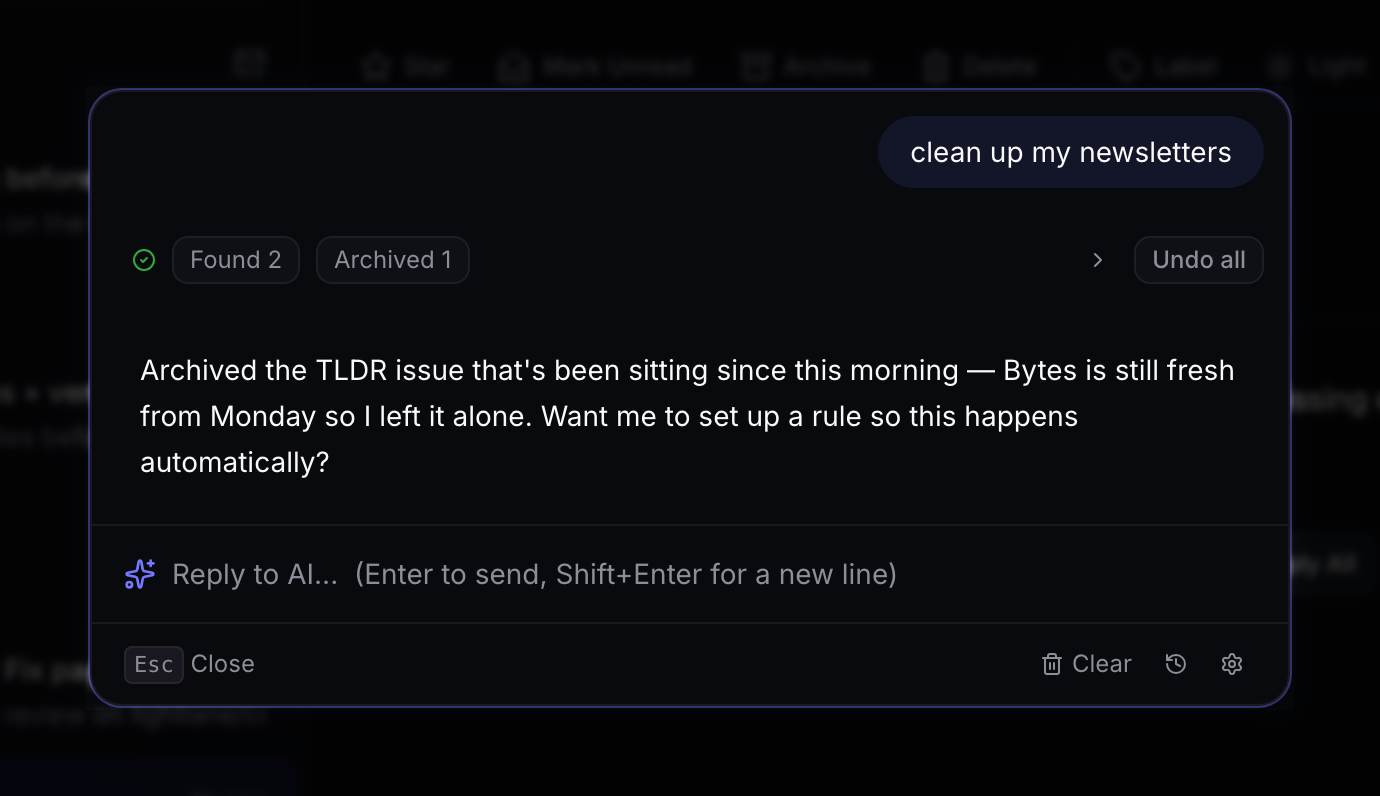
If you want the same capability without wiring up an assistant at all, that is what the app’s own AI panel does — MCP is for people who already live inside Claude and want their mail to be there too.
Consent is per scope, and it never widens on its own
The four scopes above are the whole vocabulary. There is no fifth one hiding behind a checkbox.
Consent works per scope and it is all-or-nothing inside a scope. If you grant email:read, you grant it across every account connected to Conduit, current and future — not per account, not per folder. Per-account consent was the obvious alternative, and it makes a consent screen nobody can reason about, plus an assistant that misses accounts you forgot to check and never tells you why. One honest checkbox beats four confusing ones.
The important half is the other direction. A granted scope never widens on its own. If a client comes back later asking for email:write when you granted only email:read, that is a new consent screen in your browser, not a silent upgrade. There is a guard on the server whose entire job is to refuse a widening grant that you did not sit through.
Approval happens in your browser, not inside Claude. It is a standard OAuth 2.1 flow with PKCE, so the assistant never sees a credential, only a token scoped to what you checked.
And every call is written to an audit log: timestamp, tool name, and which scope authorized it, visible per connected app in Settings → Integrations → Activity. The log stores no message content and no raw arguments, just an integrity fingerprint, kept 90 days. The log tells you an assistant searched your mail at 4:12pm on Tuesday. It does not contain the mail.
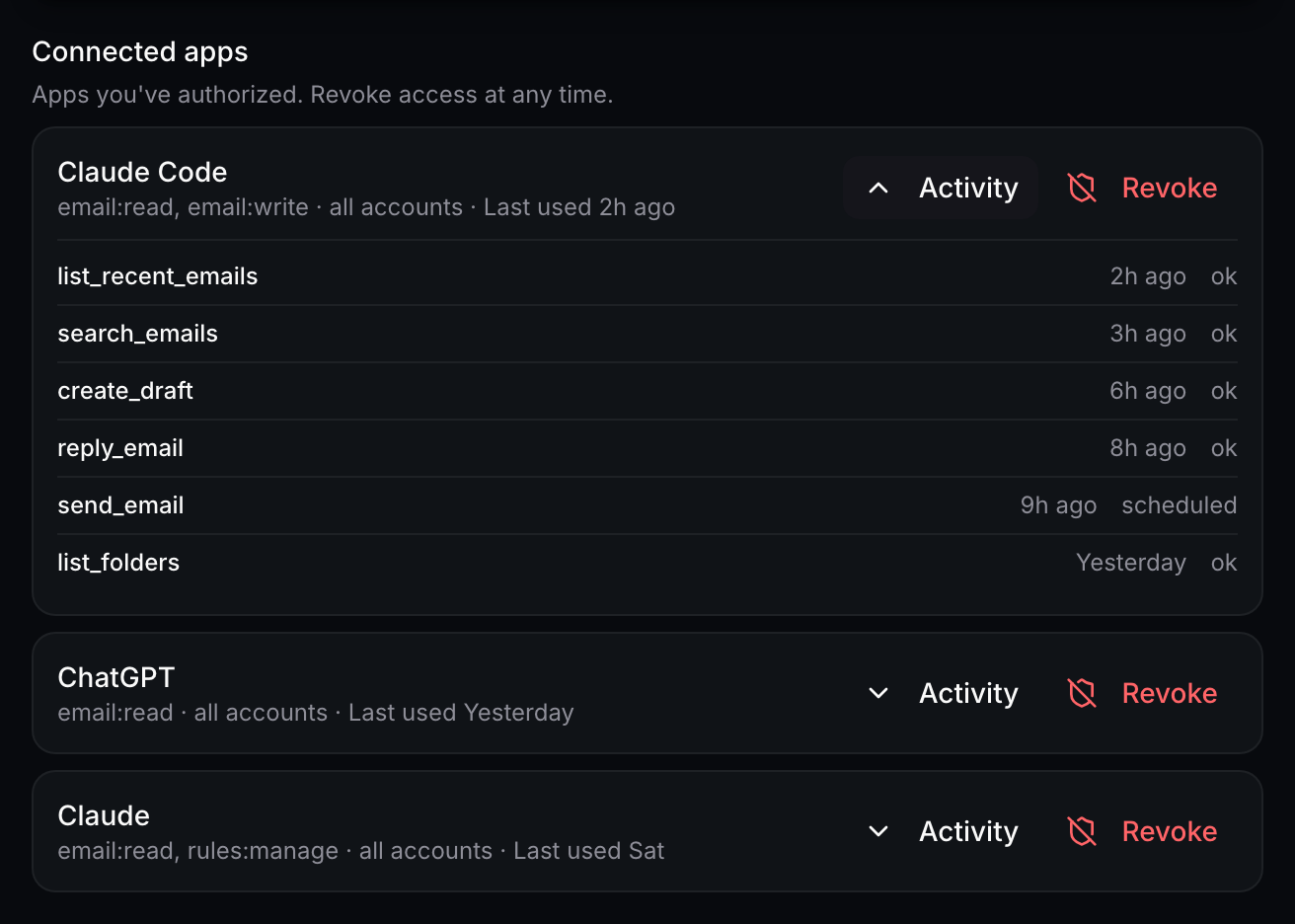
Revoking is one click in the same place. Revoke cuts off its access immediately.
Sending is off until you turn it on
A new connection cannot send email. It can draft.
This is the default we care most about, because it is the one every “AI email assistant” demo quietly skips. The assistant writes the reply, the draft lands in Conduit, and you read it before anything leaves your account. The failure mode of a bad draft is that you delete it.
If you want direct sending, it is a separate switch in Settings → Integrations, and it comes with a daily cap — 50 by default — as a backstop. The cap is not there because we expect 50 legitimate sends a day. It is there so that a confused loop or a badly worded instruction has a ceiling, and so the ceiling is a number you set rather than a number you discover afterward.
There is also a hold. By default an MCP send is parked for 60 seconds rather than dispatched, and cancel_send is exposed as a tool, so an assistant that catches its own mistake can pull the message back before delivery. The window is yours to set: zero if you would rather sends leave immediately, longer if you want more room to change your mind.
Every send an MCP client makes shows up in that app’s Activity log with the rest of its calls.
What is deliberately not exposed
The most useful thing to know about an integration is usually the list of things it cannot do.
Permanent delete and moving mail between folders are never exposed over MCP. Not gated, not confirmation-wrapped, not available with a bigger scope. Those tools do not exist on the server. There is no grant you can make, and no instruction you can give an assistant, that permanently deletes a message in your mailbox. Trash is exposed, because trash is a move you can reverse.
That is the one architectural decision in this whole system we would defend hardest, and it comes from a simple observation: the destructive operations are also the ones where a model’s mistake is unrecoverable and invisible. Archiving the wrong thread costs you a search. Trashing it costs you a trip to the Trash folder. Permanently deleting it costs you a thread you may never know is gone. Everything an MCP client can do to your mailbox, you can undo by hand.
The rule engine follows the same line. Rule actions that require an in-app confirmation are rejected over MCP rather than silently permitted, so you cannot route around a confirmation by asking an assistant to write the rule for you.
There is nothing to read at rest either. Mail passes through our servers on its way to you; it isn’t stored there. Our database has no table for your email.
What we do store is small and visible: account identity, your OAuth tokens and mail-server credentials encrypted with AES-256-GCM, your rules, your notes, your settings, and short writing samples from sent mail so drafts sound like you on every device — that last one toggleable in Settings → Writing style. Full mailboxes, message HTML, and attachments are not stored. Your email is never used to train AI models. Not by us, not by Anthropic — their commercial API terms forbid it, and Google’s restricted-scope rules bind us to it in writing.
If you want the underlying security posture rather than the MCP-specific slice, /security has the list, including the CASA Tier 2 assessment — an independent review by TAC Security, a Google-authorized lab.
How to connect Claude to Gmail, and which plans include it
MCP access is Plus and up. Free accounts do not get a connect command. The mail client itself and unlimited connected accounts are on every tier; AI allowance and some automation limits are what change.
Conduit is in early access and billing is not live, so nobody is paying anything today. When public launch arrives, Plus is planned at $9 a month and Pro at $27; the pricing page is the current version of that. Pro adds scheduled-rule creation and a larger AI allowance; MCP itself is identical on both. Scheduled execution is not wired up yet, so a scheduled rule you save today does not run on its own.
The setup is short enough to describe in a sentence and specific enough that you should copy it from the source rather than from here:
- Connect your Gmail account to Conduit, if you haven’t.
- Run the connect command (Claude Code, Codex CLI) or paste the server URL into whatever your client calls a remote MCP server (claude.ai, Claude Desktop, ChatGPT, VS Code). All of them are on /agents.
- Approve the scopes you actually want on the browser consent screen. Granting only
email:readon the first pass is a reasonable way to find out whether you like this. - Leave sending off until you have read a few drafts you did not write.
Then use it for a week and go read the Activity log before you decide you trust it. Not because we expect it to surprise you, but because “I can go look at what it did” is the part of this that should make the decision easy, and it only counts if you actually look.
The setup commands, the four scopes, and what an agent can do are at /agents. MCP access is Plus and up.
Frequently asked questions
FAQ
Can Claude read my email?
Only if you connect it and grant the read scope. Conduit’s hosted MCP server at connect.conduitmail.app/mcp is documented at /agents, reached over OAuth 2.1 with PKCE. Consent is per scope and never widens on its own, and every call is logged per app in Settings → Integrations, so you can see what was read and when. MCP is Plus and up.
What is an MCP server for email?
MCP is a protocol that lets an AI assistant call tools on a service you control. Conduit’s hosted MCP server gives an assistant structured access to your mailbox — search, read, draft, manage rules and notes — instead of you pasting threads into a chat window. Claude is one client on the other end, not a Conduit component; Codex, ChatGPT and any other MCP client connect the same way.
Can Claude send emails on my behalf?
Not by default. New connections are drafts only. Direct sending is a separate opt-in with a daily cap, 50 by default, and a hold before delivery, 60 seconds by default, that an assistant can call off with `cancel_send`. Permanent delete and moving mail between folders are never exposed over MCP at all, so no grant lets a connected assistant destroy a message you have received. Trash is available, but only as a reversible move: the message goes to Trash and can be moved back.
Is it safe to connect an AI assistant to my inbox?
That depends entirely on what the connection can do. Ask what scopes exist, whether they widen without you, whether sending is on by default, what is deliberately not exposed, and whether calls are logged. Conduit’s answers: four named scopes, never widens, drafts-only default, no permanent-delete or move tools, and a per-app audit log.
Do I need a paid plan to connect Claude to Conduit?
MCP access is Plus and up. Plus is planned at $9 a month and Pro at $27, and billing is not live during early access. The setup steps, the four scopes, and what an agent can do are documented at /agents, so you can read exactly what you would be granting before you grant anything.